For iPad and iPhone
Herald Remote and Herald Stage
Two small apps that go with CTW Herald on the media computer. They connect over the church's own Wi-Fi: scan the QR code Herald shows, once, and after that they reconnect by themselves.

Herald Remote
Follow or run the service from an iPad or iPhone.
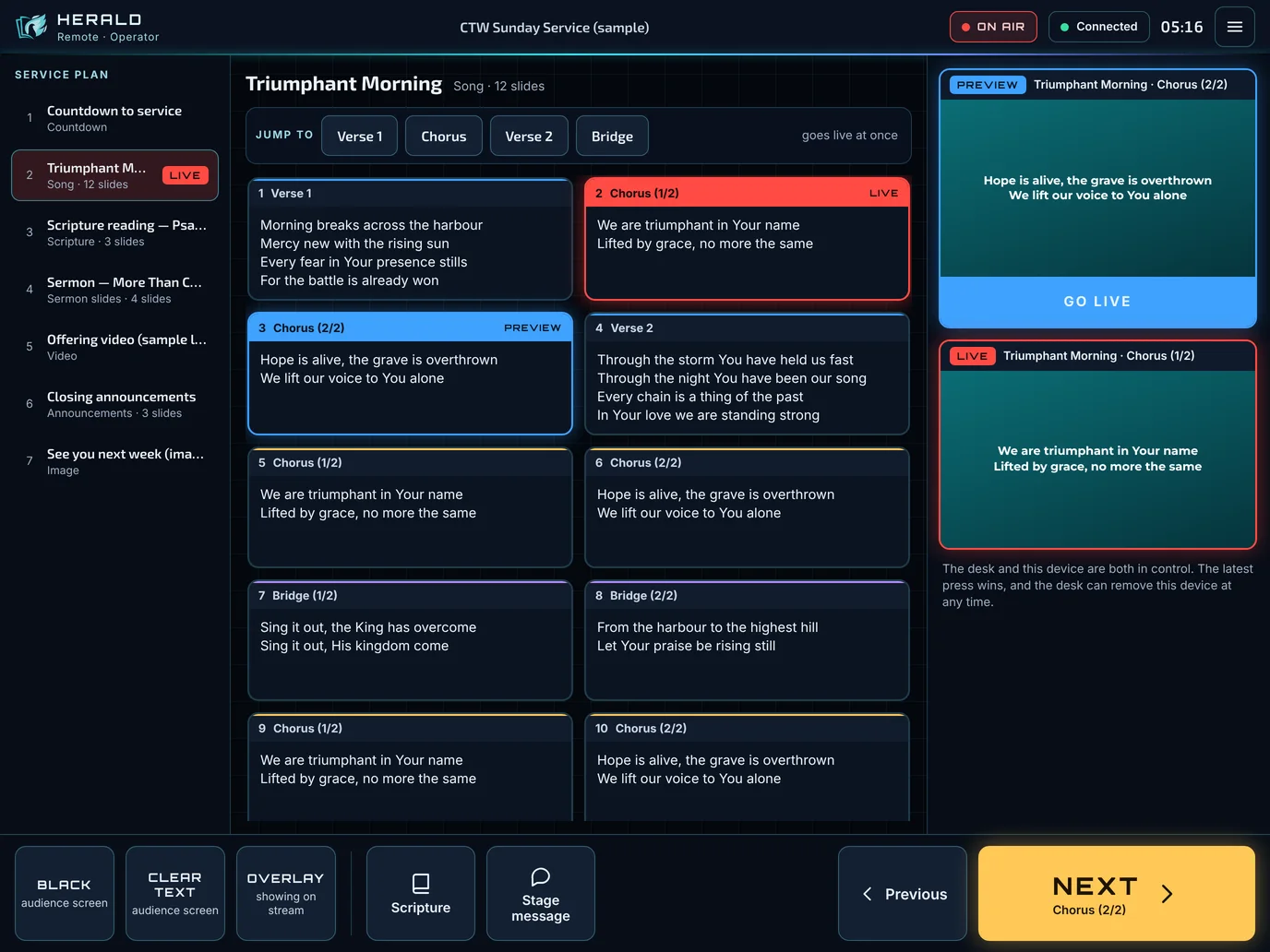
- Next, Previous and Go live, with buttons made for fingers.
- See what is live, what is cued, and what comes next.
- Jump to a verse or chorus, look up a Scripture, black the screen.
- Send the stage a message or a countdown.
- The operator stays in charge: each device may only watch, move through one speaker's slides, or run the service, and can be removed at any moment.

Herald Stage
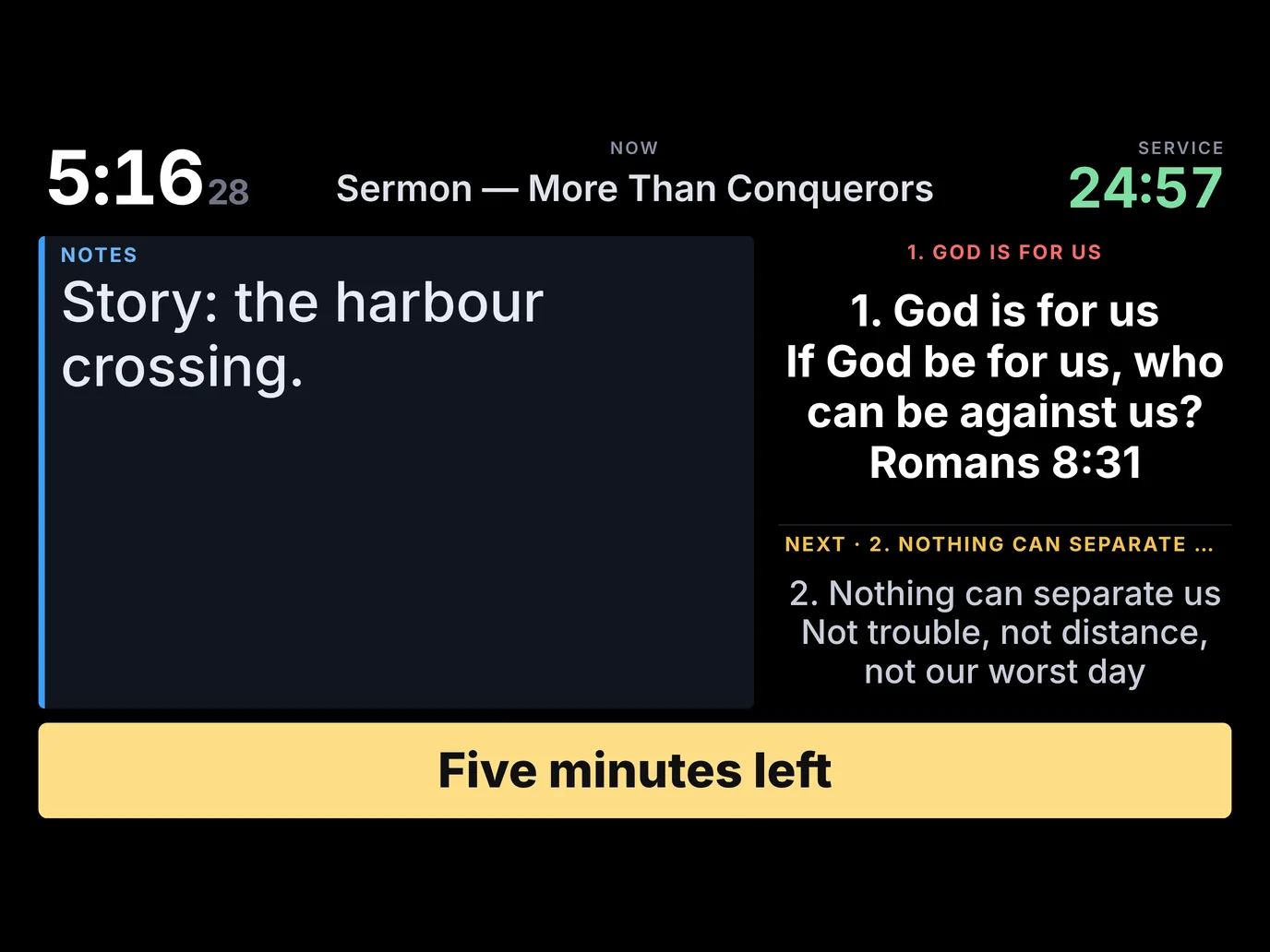
An iPad as a stage display.
- The words on the screen now, and what comes next.
- The clock, and a countdown from the desk.
- The speaker's private notes, and messages such as "Five minutes left".
- Layouts for the worship leader, the speaker, or just the clock.
- The screen stays awake. If the media computer is not on yet, the app waits and connects when it is.
Connecting
- On the media computer, open Displays in Herald and switch on Remote control (for Herald Remote) or Stage on Wi-Fi (for Herald Stage).
- In the app, tap Scan the QR code and point the iPad at the code Herald shows. Allow the camera and the local network when the iPad asks.
- For Herald Remote, the operator says yes and chooses what the device may do.
Until the apps are on the App Store, and on an iPad too old for them, any iPad or phone can do the same in Safari: open the address Herald shows beside the QR code, then Share, Add to Home Screen.
The apps need CTW Herald 0.11 or later, and iPadOS or iOS 16.4 or later. Without Herald, "Try the demo" in each app shows what it does.