Made for Church Triumphant Wellington

One operator.
Every screen.
Ready before Sunday.

CTW Herald puts the words, the Scripture and the slides on the congregation's screen, the stage display and the livestream at the same moment, from one desk.

Try it: press the keys below, or use Space ← → B C

The congregation
Amazing grace! how sweet the soundThat saved a wretch like me
The stage
10:32Verse 1 (1/2)
Amazing grace! how sweet the soundThat saved a wretch like me
Band: key of G. Hold the last line if the room is still singing.
The livestream
LIVE
Amazing grace! how sweet the soundThat saved a wretch like me
LIVEVerse 1 (1/2)

A small model of Herald, drawn for this page. The real screens are in the picture tour.
One press, three screens

Each screen gets what it is for

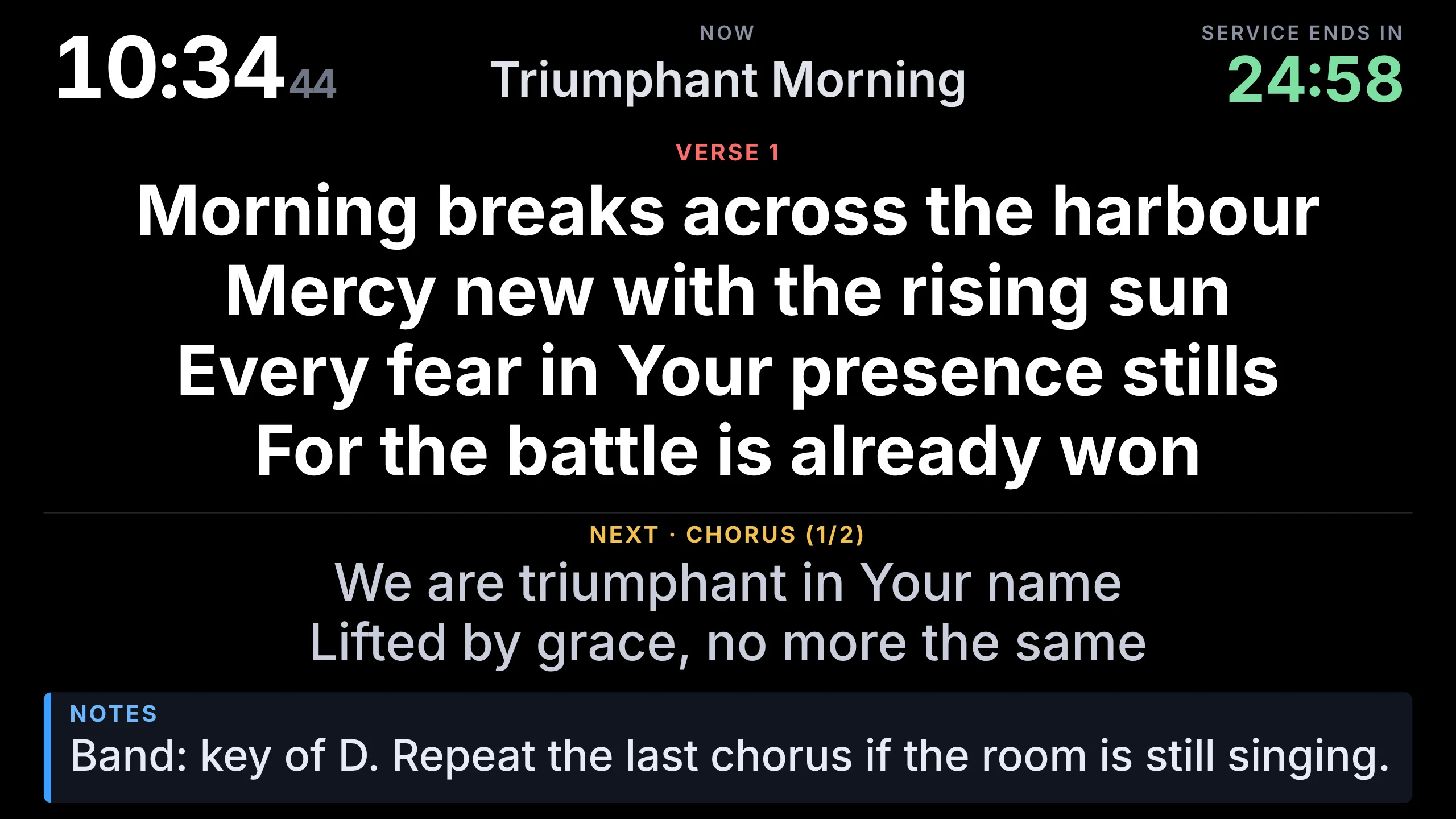
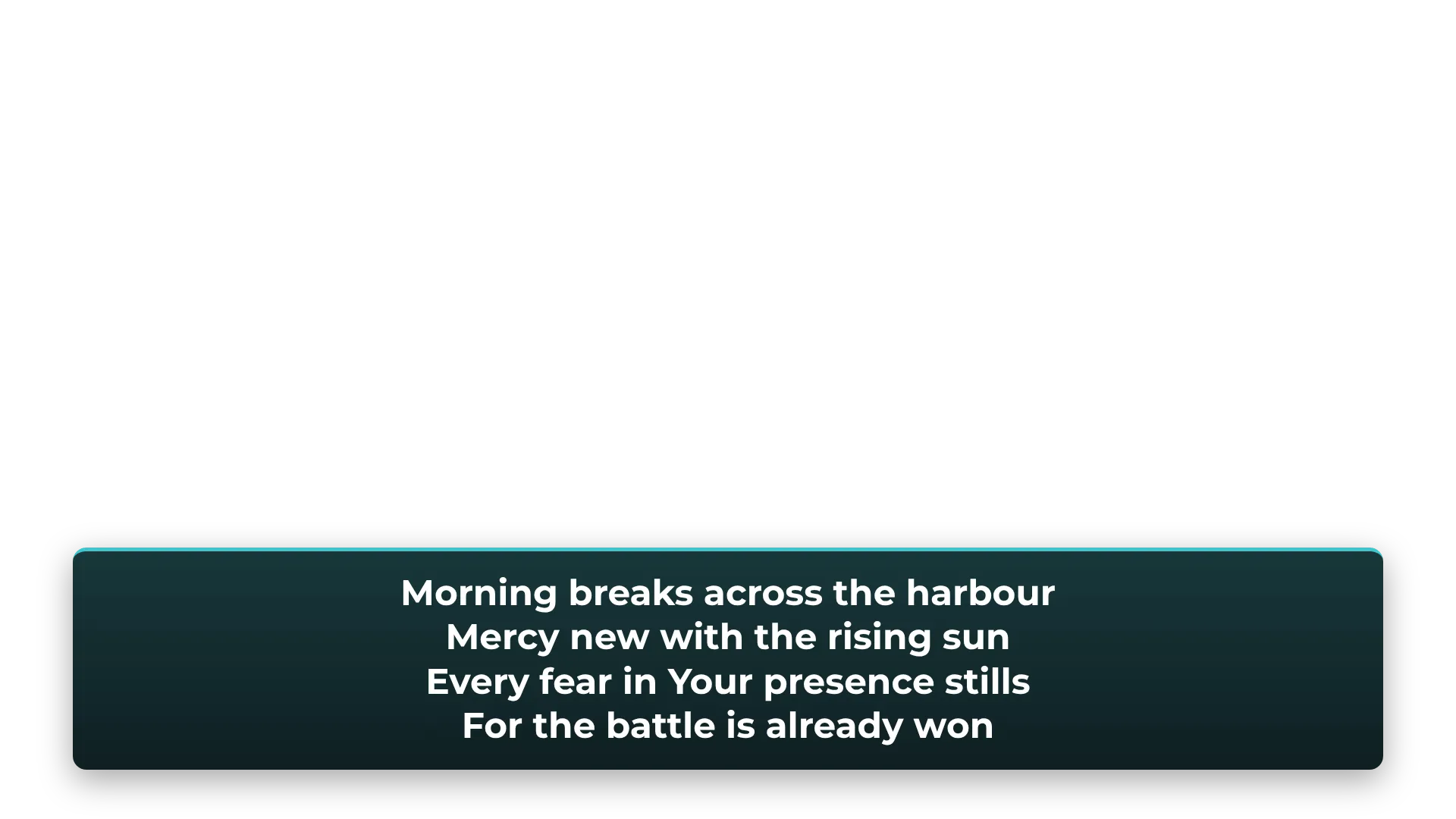
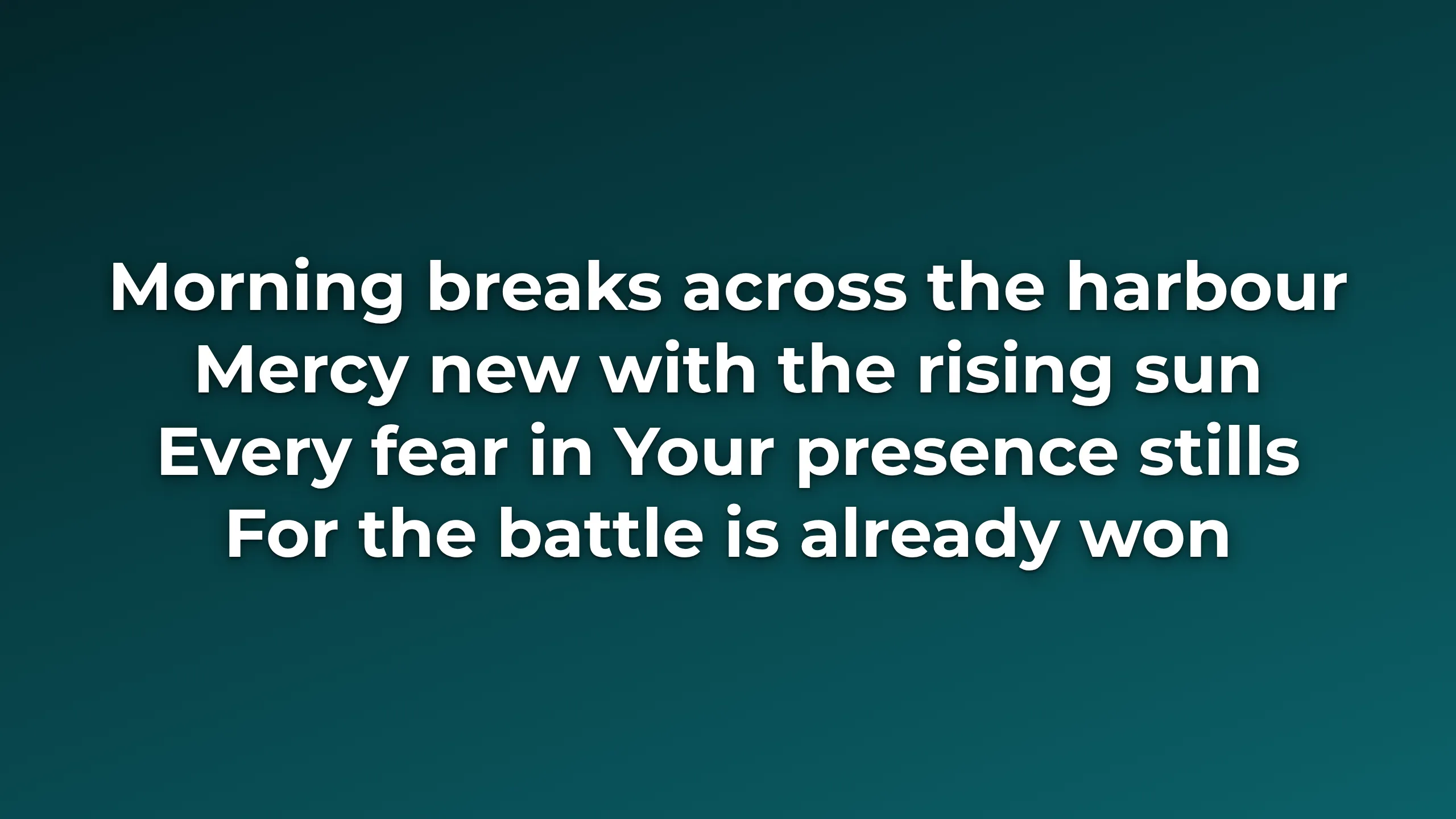
The congregation sees the words. The stage sees the words, what comes next, the clock and the speaker's private notes. The livestream gets a lower third over the camera picture. Private notes and messages never reach the congregation or the stream.

Song words on the audience screen.
The audience screenWords large enough for the back row, on your own backgrounds.
The stage display: clock, the words now, the words next, and notes.
The stage displayOn a cable, or on any tablet over Wi-Fi.
A lower third with song words, see-through, for the livestream.
The livestreamSee-through graphics that OBS lays over the camera.
Blue is Preview: what comes next.Red is Live: what people can see now.Gold is Next.
Made for a Sunday

Everything the desk does, in one place

Songs, Scripture and slides

Verses and choruses as tiles: when the leader repeats a chorus, one press jumps to it. The King James Bible is built in; type jn 3 16. Sermon slides carry notes only the speaker sees.

The livestream

Lower thirds for OBS with a look for each part of the service. Start and end the broadcast to YouTube, Facebook or both from Herald.

Like a vision mixer

One picture fades into the next. Up to four live pictures share the screen: a camera beside a laptop, or someone on a Teams call. A HyperDeck plays its clip, and records when the operator presses Record.

Video and sound

Videos with sound to the room and the stream separately, cameras and capture devices, NDI in and out, and sound in from the desk.

Rehearsal, and a check

Herald starts in Rehearsal, where nothing reaches the screens. The pre-service check says what is missing before the congregation finds out.

The room needs no internet

Songs, the Bible, media and the stream graphics are all on the media computer. Only the livestream itself and web streams need the internet.

Coming next: Herald Workspace

The week before Sunday, together

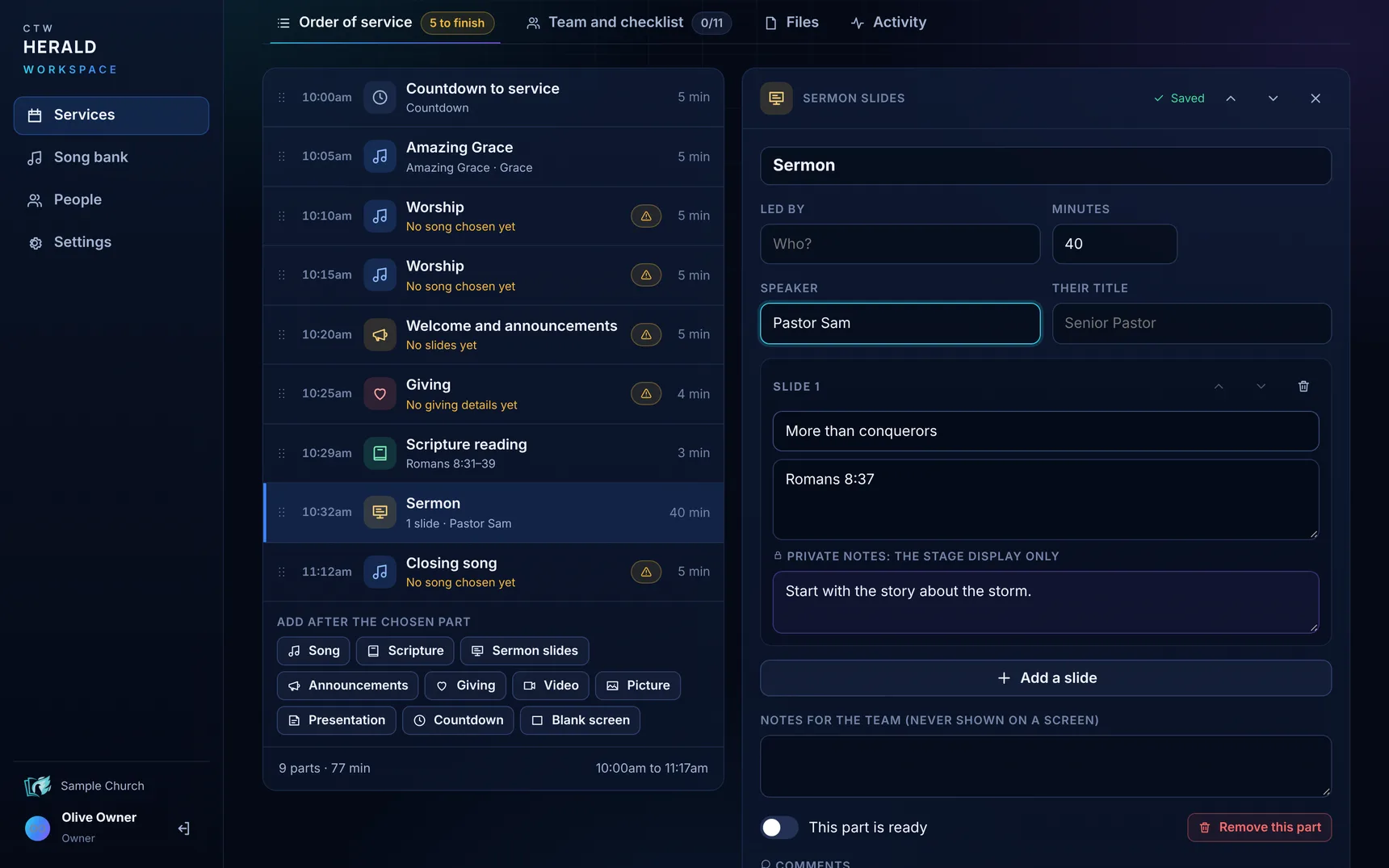
The worship leader chooses the songs, the preacher adds the slides and the Scripture, the media team uploads the videos. Each part says whether it is finished, and each team signs off.

The workspace is being set up for Church Triumphant Wellington and is not open yet. The pictures are the real thing, running a sample service. Herald's half is already in version 0.14: Pull from Workspace.

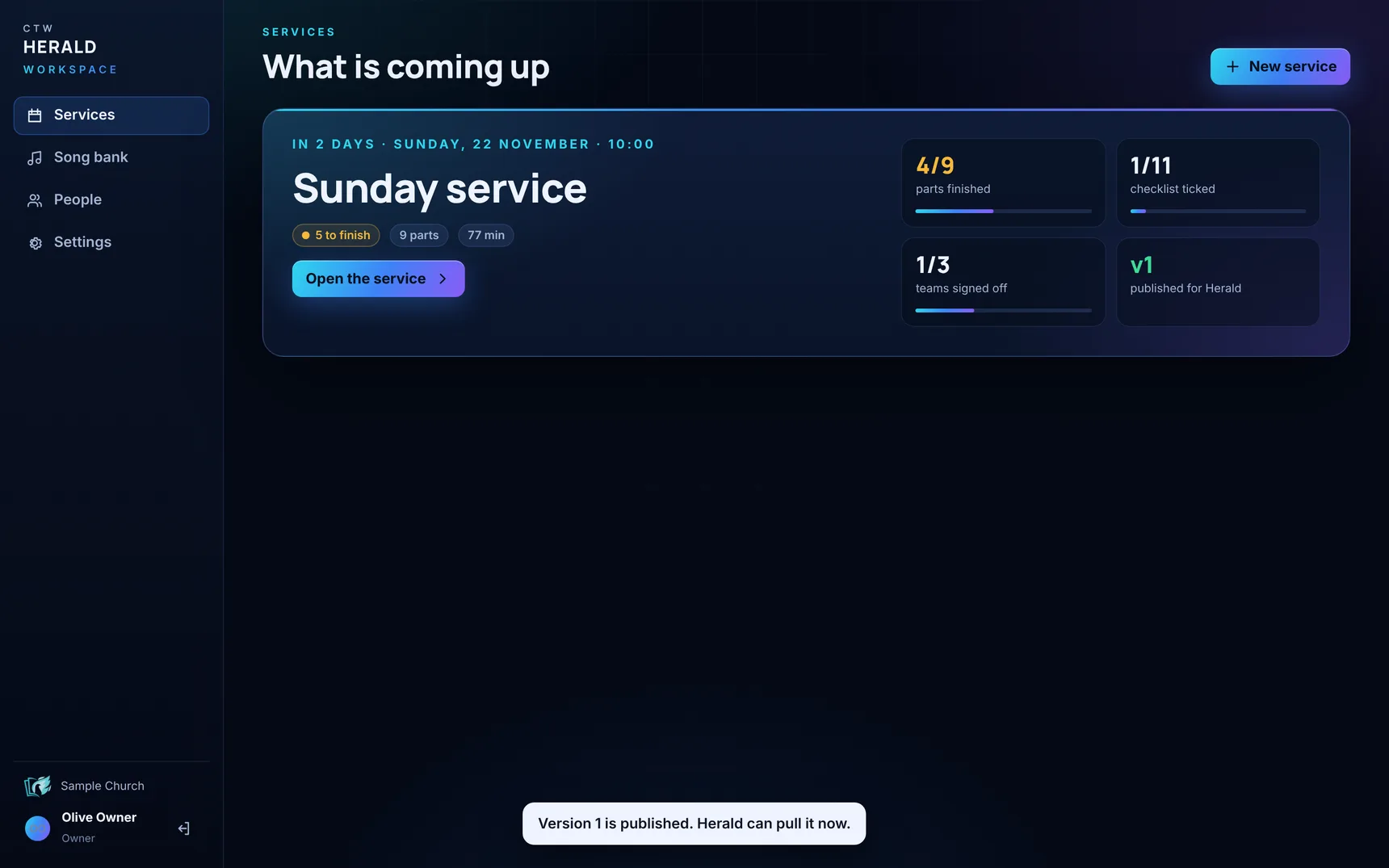
Herald Workspace: the order of service on the left with each part's time and what it still needs, and the sermon slides with private notes on the right. Herald Workspace: the coming Sunday, with how many parts are finished, how much of the checklist is ticked, which teams have signed off, and the published version.
During the week

Plan it together

From anywhere, in a browser, signed in with the church's Microsoft 365.

Saturday

See what is missing

Unfinished parts are marked. Worship, the word and tech each sign off.

Sunday

Publish, then pull

The media computer pulls the whole service into Herald, and then needs no internet.

On a Stream Deck

The service, on keys

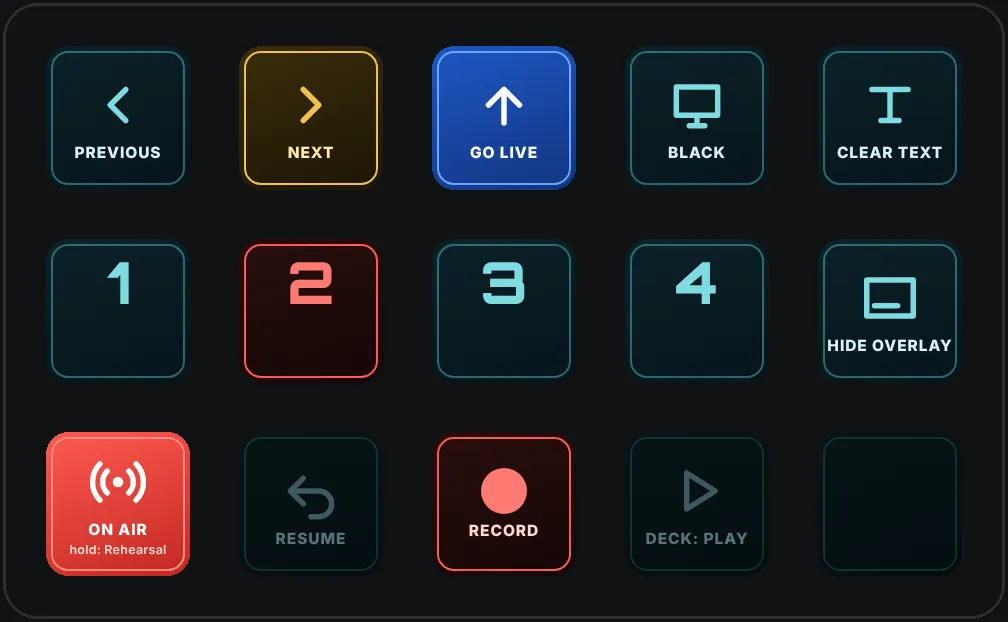
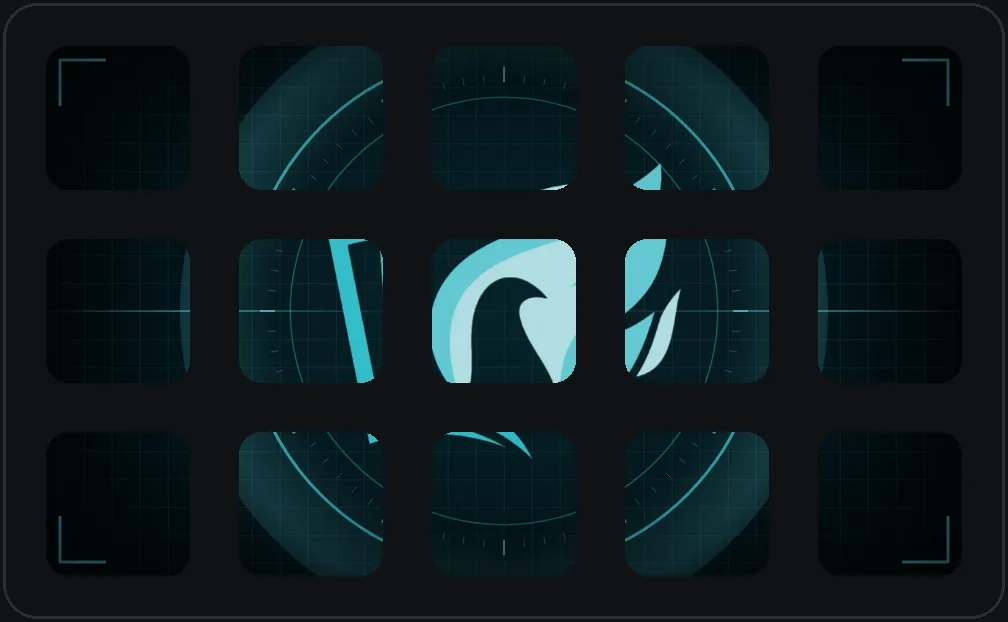
Next, Previous, Go live, Black, the sections of the song on the screen, and Record for the HyperDeck, on an Elgato Stream Deck beside the keyboard. Blue, red and gold mean what they mean in Herald. When Herald is closed, the keys show the church's mark.

The plugin comes inside Herald: Displays → Stream Deck. Going back to Rehearsal, and stopping a recording, each need the key held down, so a brush of a finger does neither.

These two pictures are drawings, made from the plugin's own key pictures. The plugin has been checked against Herald, but not yet tried in Elgato's software or on a real Stream Deck.

A drawing of a fifteen-key Stream Deck while Herald is open: Previous, Next in gold, Go live in blue, Black, Clear text, four numbered keys for the song's sections with the second in red, Hide overlay, On Air in red, Resume, Record, and Deck play. A drawing of the same Stream Deck while Herald is closed: the fifteen keys together show the mark of Church Triumphant, in pale blue on a dark ground, inside thin rings.
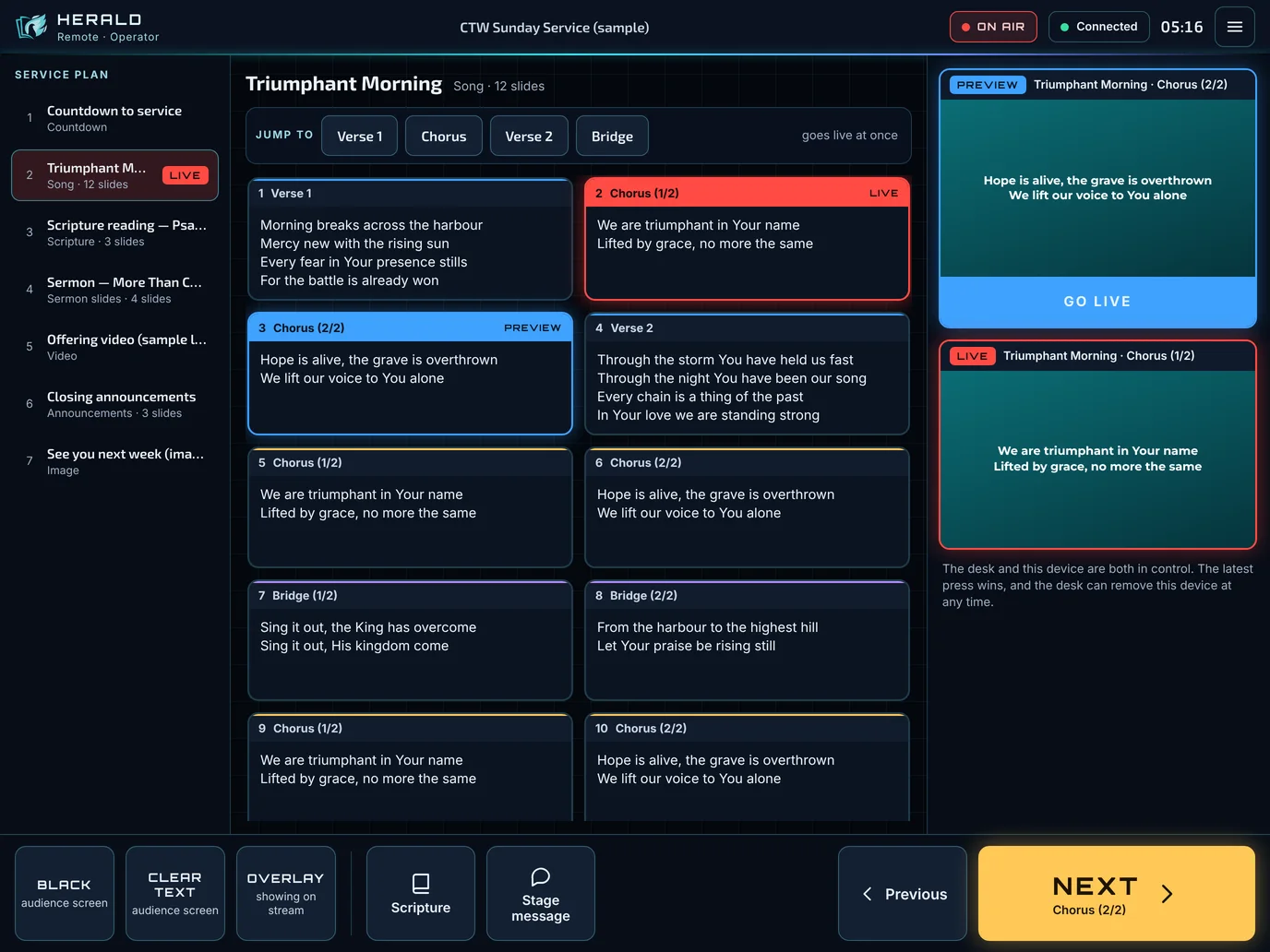
Herald Remote on an iPad: the service order, slide tiles, Preview and Live, and a large Next button.
On an iPad or iPhone

Herald Remote and Herald Stage

Run the service from an iPad, or stand one on stage as a stage display. The operator at the desk decides what each device may do.

Version 0.14.0

Download

Windows

Windows 10 or 11, 64-bit.

Not online yet 157 MB

CTW-Herald-0.14.0-windows-x64.zip

Mac with Apple silicon

macOS 13 or newer. About This Mac says "Chip: Apple M...".

Not online yet 126 MB

CTW-Herald-0.14.0-mac-arm64.zip

Mac with Intel

macOS 13 or newer. About This Mac says "Processor: Intel".

Not online yet 132 MB

CTW-Herald-0.14.0-mac-x64.zip

The installers are not on this site yet. Until they are, your media team has them.

How to install it, and what the first-run warnings mean

Learn it

For the person at the desk

Made for one church first

Would your church use it?

CTW Herald was designed and built by TK Software for Church Triumphant Wellington, and is in use there first. If you would like to hear when it is ready for other churches, talk to TK Software.

Talk to TK Software
CTW Herald 0.14.0. Made for Church Triumphant Wellington.
PrivacySupportDownload
Designed & built by TK Software